Built-in Plugins in NetBox Enterprise
NetBox Enterprise includes a curated set of pre-integrated plugins that extend core capabilities without the complexity of manual installation. These plugins are tested, supported, and ready to enable with simple configuration changes.
Overview
Built-in plugins provide enterprise-ready features that would normally require manual wheelhouse management. By pre-integrating popular community plugins, NetBox Enterprise simplifies deployment while ensuring compatibility and support.
Key Benefits:
- Zero Installation: No wheelhouse creation or dependency management required
- Pre-tested Compatibility: All plugins verified against the NetBox Enterprise version
- Official Support: Covered under NetBox Enterprise support agreements
- Instant Availability: Enable/disable with configuration changes only
- Automatic Updates: Plugins updated alongside NetBox Enterprise releases
Built-in vs Custom Plugins:
| Feature | Built-in Plugins | Custom Plugins |
|---|---|---|
| Installation | Configuration only | Wheelhouse creation required |
| Compatibility | Pre-tested | Manual verification needed |
| Support | Official support included | Community or vendor support |
| Updates | Automatic with NBE | Manual wheelhouse rebuild |
| Availability | Instant | Requires upload process |
Available Plugin List:
Built-in plugins are regularly added to NetBox Enterprise as new releases become available. For the most current list of built-in plugins, refer to the NetBox Enterprise Release Notes.
Prerequisites
Before enabling built-in plugins, ensure you have:
- Admin Access: Access to the NetBox Enterprise Admin Console
- Configuration Permissions: Ability to modify NetBox Python Configuration Overrides
- Plugin Documentation: Review the specific plugin's documentation for configuration requirements
- Deployment Window: Time for NetBox pods to restart (typically 2-5 minutes)
Unlike custom plugins, built-in plugins do not require wheelhouse creation, dependency management, or file uploads. They are already installed in the NetBox Enterprise container.
Enabling Built-in Plugins
Step 1: Access Admin Console
- Navigate to the Config tab in the NetBox Enterprise Admin Console
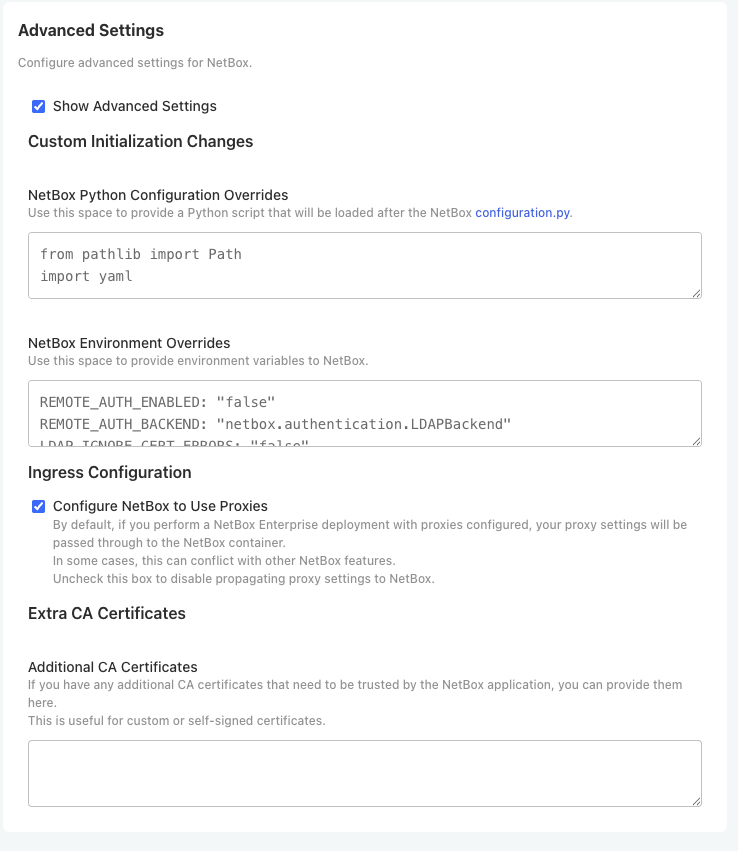
- Scroll down and enable Show Advanced Settings checkbox:
Step 2: Configure Plugins
In the NetBox Python Configuration Overrides field, add your plugin configuration:
Example: Enable multiple plugins
PLUGINS = ['netbox_topology_views', 'netbox_bgp', 'netbox_access_lists']
Example: Enable plugins with configuration
PLUGINS = ['netbox_topology_views', 'netbox_bgp']

PLUGINS_CONFIG = {
    'netbox_topology_views': {
        'allow_coordinates_saving': True,
        'always_save_coordinates': True
    },
    'netbox_bgp': {
        'device_ext_page': 'right'
    }
}
Each plugin has specific configuration options. Consult the plugin's documentation on GitHub for available settings:
- NetBox Topology Views
- NetBox BGP
- See Release Notes for links to all built-in plugins
Step 3: Deploy Configuration
- Scroll to the bottom of the Config page
- Click Save config
- When prompted, click Go to updated version
- Click Deploy to apply the configuration changes
The deployment process will:
- Create a new NetBox Enterprise configuration version
- Restart NetBox pods with the updated plugin configuration
- Apply any plugin-specific database migrations
- Return to Ready state when complete (typically 2-5 minutes)
Step 4: Verify Plugin Activation
Once NetBox Enterprise returns to Ready state:
# Check plugin status in the UI
1. Log in to your NetBox instance
2. Navigate to /plugins/ to see the list of installed plugins
3. Verify your enabled plugins appear in the list
Expected Plugin Indicators:
- Plugin appears in the Plugins list at
/plugins/ - Plugin navigation items appear in the NetBox UI navbar
- Plugin-specific pages and features are accessible
- No plugin loading errors in System > Background Jobs
Best Practices
Plugin Selection
- Review Documentation: Always review a plugin's documentation before enabling
- Understand Dependencies: Check if plugins require specific data models or configurations
- Test in Development: Enable plugins in a development environment first
- Start Minimal: Enable only plugins you actively need to reduce complexity
Configuration Management
- Version Control: Track your
PLUGINSandPLUGINS_CONFIGin version control - Document Choices: Document why specific plugins are enabled and their configurations
- Review Regularly: Periodically review enabled plugins and disable unused ones
- Configuration Validation: Test configuration changes in staging before production
Performance Considerations
- Resource Usage: Some plugins add database queries or background jobs
- Monitor Impact: Monitor system performance after enabling new plugins
- Disable Unused: Disable plugins you're not actively using
- Review Updates: Check release notes when upgrading NetBox Enterprise for plugin changes
Troubleshooting
Plugin Doesn't Appear After Deployment
Check:
- Deployment completed successfully and shows Ready state
- Plugin name is spelled correctly in
PLUGINSlist - Plugin name matches exactly (case-sensitive)
- No errors in Background Jobs or system logs
Solutions:
# Check NetBox logs for plugin loading errors
kubectl logs -n <namespace> <netbox-pod-name> | grep -i plugin

# Verify configuration was applied
# Log in to NetBox and check Admin > System > Configuration
Plugin Configuration Not Applied
Check:
PLUGINS_CONFIGdictionary syntax is correct (proper Python formatting)- Plugin name in
PLUGINS_CONFIGmatches name inPLUGINSlist - Configuration keys match plugin's documented options
- Values use correct data types (strings, booleans, integers)
Solutions:
- Review plugin's GitHub repository for correct configuration syntax
- Check Python syntax (commas, quotes, brackets)
- Verify configuration keys match plugin documentation exactly
Database Migration Errors
Problem: Deployment fails with database migration errors
Solutions:
- Check that your NetBox Enterprise version supports the plugin version
- Review Release Notes for known issues
- Contact your NetBox Enterprise support representative if migrations fail
Plugin Causes Performance Issues
Solutions:
- Review plugin documentation for performance tuning options
- Check plugin configuration for settings that reduce query load
- Disable the plugin temporarily to confirm it's the cause
- Review plugin's GitHub issues for known performance problems
- Consider alternative plugins or custom solutions
Additional Resources
- NetBox Enterprise Release Notes - Current list of built-in plugins
- Installing Custom Plugins - Add plugins not included by default
- NetBox Plugin Configuration - General plugin configuration guide
- NetBox Community Plugins - Browse available plugins
Disabling Plugins
To disable a plugin:
- Remove the plugin name from the
PLUGINSlist - Remove any associated
PLUGINS_CONFIGentries (optional but recommended) - Save and deploy the configuration
- The plugin will be deactivated after NetBox restarts
Disabling a plugin does not remove its database tables or data. The data remains in the database and will be accessible again if you re-enable the plugin. To completely remove a plugin's data, you would need to manually drop its database tables (not recommended without backup).