NetBox Copilot Usage Guide
A guide to using NetBox Copilot effectively, including capabilities, best practices, troubleshooting, and frequently asked questions.
Table of Contents
- How It Works
- What Copilot Can Do
- Making Changes to NetBox
- Using Copilot Effectively
- Troubleshooting
- Frequently Asked Questions
- Providing Feedback
How It Works
NetBox Copilot uses a browser-based integration that embeds directly in NetBox, processes queries in the cloud using AI models optimized for NetBox, and executes in your browser using your existing NetBox session.
There's no need to install software, modify NetBox files, or change your NetBox database. Copilot works entirely through your web browser.
How a Query Works
- You ask a question in the Copilot chat interface
- Context is captured—Copilot knows what page you're viewing and what object you're looking at
- Query sent securely to the NetBox Cloud backend for processing
- AI analyzes your question and determines what NetBox data is needed
- Tools execute in your browser using your NetBox API session and your permissions
- Results are processed and formatted into a helpful response
This architecture ensures that Copilot always respects your NetBox permissions. For complete security and privacy details, see the Privacy & Security page.
Administrator Configuration
NetBox administrators have control over Copilot availability for their instance:
Global Configuration (NetBox 4.4.5+):
NetBox provides a COPILOT_ENABLED configuration parameter that controls Copilot availability instance-wide. When enabled by an administrator, individual users can then enable or disable Copilot for themselves through their user preferences.
User Preferences (NetBox 4.4.5+):
When the global configuration allows Copilot, each user can control whether Copilot appears in their NetBox interface through their personal preferences. This allows organizations to make Copilot available without forcing it on users who prefer not to use it.
Isolated Deployments:
If NetBox is configured with ISOLATED_DEPLOYMENT enabled (meaning no external network access), Copilot will be automatically disabled since it requires access to the NetBox Cloud backend to function. This ensures Copilot respects air-gapped or isolated NetBox environments.
For Users:
If you don't see the Copilot preference option in your user settings (NetBox 4.4.5+), check with your NetBox administrator. They may have disabled Copilot globally for security, compliance, or operational reasons.
What Copilot Can Do
Querying NetBox Data
Ask questions to find and filter NetBox objects across all types—devices, interfaces, IP addresses, prefixes, VLANs, VRFs, sites, locations, racks, circuits, virtual machines, tenants, and more. Copilot introspects your NetBox data model and can work with plugin-provided object types too.
Example Queries:
"Show me all devices in the NYC datacenter"
"What IP addresses are available in 10.0.1.0/24?"
"Find all interfaces with MTU 9000"
"Show me devices with the role 'core-switch'"
"What VLANs are assigned to the production tenant?"
Copilot responses include natural language summaries, direct links to NetBox objects, counts and statistics, and explanations of how the data was gathered.
Analyzing Your Data
Go beyond simple queries to explore relationships and patterns:
"Which interfaces on switch01 are not connected?"
"Show me all devices in racks that are over 80% full"
"Find devices without a primary IP address"
"Which circuits are connected to devices in site ABC?"
Copilot can break down complex questions into multiple steps automatically—finding objects, filtering by criteria, and following relationships.
Change History and Audit
Track what happened in your NetBox environment:
"What changes were made to this device last week?"
"Who modified this IP address?"
"What happened to this circuit in the past month?"
Copilot shows who made changes, when they happened, what changed (before and after values), and the type of change.
Navigation and Context Awareness
Copilot understands where you are in NetBox. When viewing a device, ask "What interfaces does this device have?" without repeating the device name. Select text on the page and ask about it. Context carries through conversations, so follow-up questions build on previous answers.
NetBox Documentation Access
Get help understanding NetBox features without leaving your workflow:
"How do VRFs work in NetBox?"
"What's the difference between a site and a location?"
"Explain NetBox's IPAM hierarchy"
Copilot searches NetBox's official documentation and provides relevant excerpts and links, and can combine documentation knowledge with your actual NetBox data.
Making Changes to NetBox
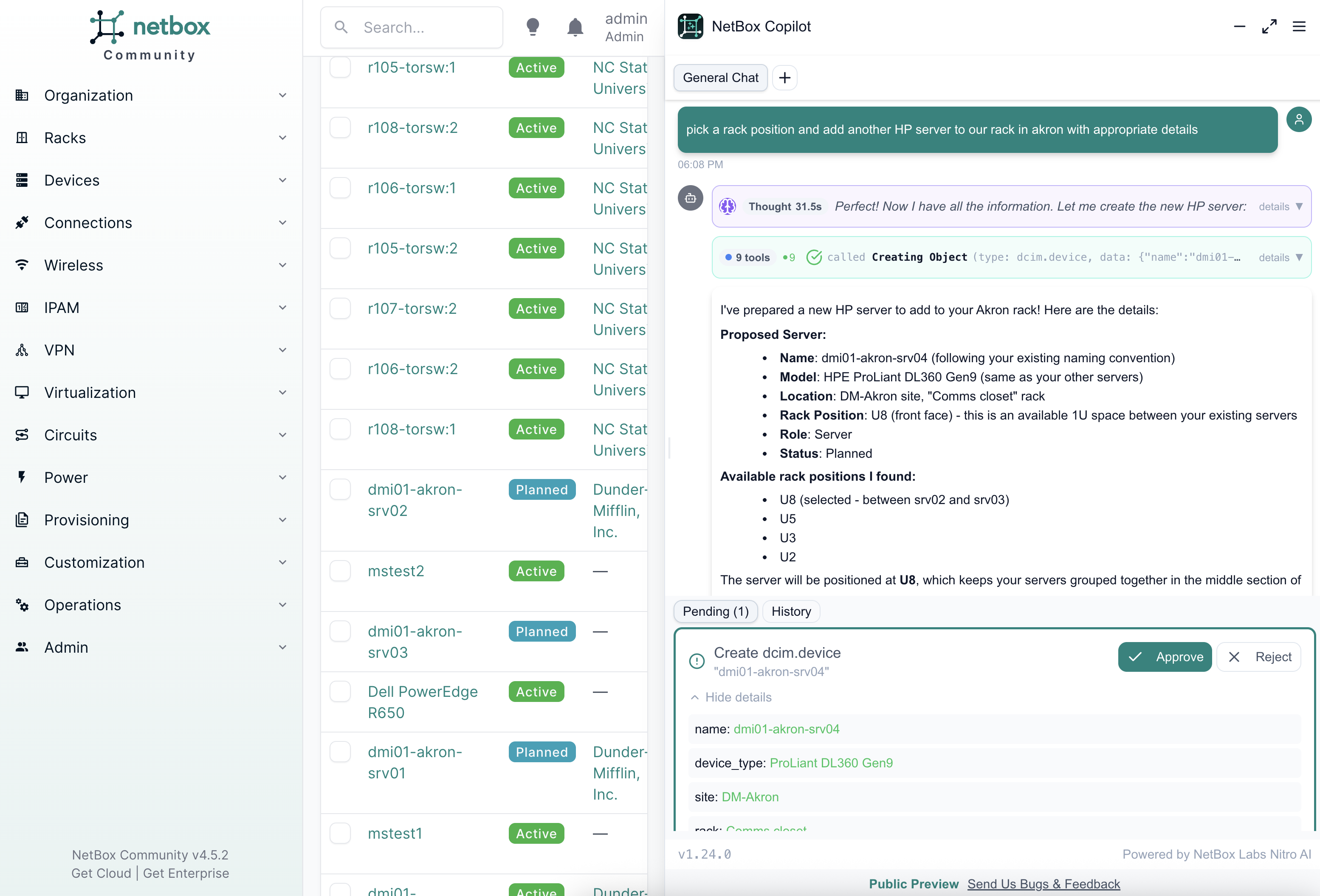
Copilot can create, update, and delete NetBox objects through a safe, human-in-the-loop approval workflow. This feature is available for NetBox Cloud and NetBox Enterprise subscribers.
How Write Tools Work
When you ask Copilot to make a change:
- You request a change in natural language (e.g., "Create a new device called web-server-04")
- Copilot prepares the operation and shows you exactly what will be changed
- You review and approve (or reject) the proposed change
- The change is applied to your NetBox instance
- Copilot confirms the result and shows you the updated object
If you reject a proposed change, you can provide feedback on what to do differently and Copilot will adjust its approach.
Supported Operations
Create objects:
"Create a new device called web-server-04 in the NYC site with role server"
"Add an IP address 10.0.1.50/24 to interface eth0 on this device"
"Create a new VLAN 100 called 'Guest Network' in the production group"
Update objects:
"Update the description on this device to 'Primary web server'"
"Change the status of this IP address to reserved"
"Set the MTU on interface eth0 to 9000"
Delete objects:
"Delete this unused IP address"
"Remove the cable connection from interface eth0"
Safety Features
- Explicit approval required: Every change must be approved before execution. You always see what will happen before it happens.
- Full audit trail: All changes are logged in NetBox's change log with your username.
- RBAC enforced: Copilot can only modify objects your NetBox permissions allow.
- Rejection with feedback: If a proposed change isn't right, reject it and tell Copilot what to do instead.
Using Copilot Effectively
Asking Good Questions
Be Specific:
❌ "Show me stuff in NYC" ✅ "Show me all devices in NYC site"
❌ "What's available?" ✅ "What IP addresses are available in the 10.0.1.0/24 subnet?"
Use NetBox Terminology When You Know It:
NetBox-specific terms help Copilot understand exactly what you want: sites, locations, racks, devices, interfaces, cables, prefixes, IP addresses, VLANs, VRFs, tenants, contacts, providers.
But don't worry if you don't know the exact terms—Copilot can often understand common language too. "Show me switches in NYC" works even without saying "devices with role switch."
Understanding Context
Copilot is aware of your current location in NetBox, text you've selected on the page, and the conversation history from the active session.
Context Carries Through Conversations:
You: "Show me all devices in NYC site"
Copilot: [shows 25 devices]

You: "Which of these are switches?"
Copilot: [filters to just switches, remembering NYC context]
Multi-Step Queries
Break complex questions into steps for better results:
Step 1: "Show me all devices in NYC site"
Step 2: "Which of these are core switches?"
Step 3: "Show me interfaces on [specific switch name]"
Step 4: "Which interfaces are not connected?"
Each step has a clear goal, you can verify results at each stage, and it's easier to spot and correct misunderstandings.
Tips and Tricks
- Keyboard Shortcut:
Ctrl+I(Windows/Linux) orCmd+I(Mac) to open/close Copilot - Copy Results: Select and copy text, or use the copy icon at the bottom of a response
- Click Links: Object links in responses navigate directly to NetBox pages
Troubleshooting
Copilot Not Appearing
If Copilot doesn't appear after enabling the preference or running the console script:
- Check browser console (F12) for error messages mentioning "Copilot"
- Verify network access to
*.copilot.netboxlabs.ai—corporate firewalls or proxies may block access - Check browser compatibility: Chrome/Edge 90+, Firefox 88+, Safari 14+
- Try a hard refresh:
Ctrl+Shift+R(Windows/Linux) orCmd+Shift+R(Mac) - Disable browser extensions: Ad blockers or privacy extensions might interfere—try private/incognito mode
Authentication Issues
- Can't create account: Contact NetBox Labs support
- Can't log in: Verify you're using the same email, try password reset, or clear browser cookies
- Session expired: Tokens expire after 10 hours of inactivity—simply log in again
- CORS errors: Check if your network has proxy or firewall restrictions on
*.copilot.netboxlabs.ai
No Responses or Slow Responses
- Out of credits: The UI will warn you. Free users can upgrade; paid subscribers can purchase more or set up auto-refill. See netboxlabs.com/pricing.
- Network latency: Check your connection. Large queries may take 5-10 seconds; streaming responses should start within 2-3 seconds.
- Complex queries: Break into simpler steps. Copilot shows "thinking" indicators while processing.
Unexpected or Incorrect Answers
- Check permissions: Copilot uses your NetBox RBAC—you only see objects you can access
- Rephrase your question: Be more specific or use NetBox terminology
- Break into steps: Complex relationships sometimes need multiple queries
- Plugin models: First query about a plugin model may be slower while Copilot discovers it
Help Us Improve: If Copilot misunderstands or gives unexpected results, use the feedback button—your reports directly help us make Copilot better.
Common Console Errors
| Error | Meaning | Solution |
|---|---|---|
CORS policy | Cross-origin blocking | Check firewall/proxy settings |
Failed to fetch | Network issue | Verify access to *.copilot.netboxlabs.ai |
401 Unauthorized | Auth expired | Log in again |
Frequently Asked Questions
General Questions
Q: What is the difference between NetBox Copilot and NetBox MCP?
A: Copilot is integrated with the NetBox UI for interactive work in your browser. NetBox MCP (Model Context Protocol) is for external AI agents to interact with NetBox programmatically.
Q: Is this part of Microsoft Copilot?
A: No, NetBox Copilot is a separate product from NetBox Labs.
Q: What LLM provider powers Copilot?
A: Primarily Anthropic models, though this may change as we optimize performance.
Q: Can I use Copilot with NetBox Community Edition?
A: Yes! Copilot works with all NetBox editions: Community, Cloud, and Enterprise.
Q: Does Copilot work with NetBox plugins?
A: Yes, Copilot discovers and works with plugin-provided models dynamically.
Write Tools
Q: Can Copilot make changes to my NetBox data?
A: Yes. Copilot can create, update, and delete objects. All changes require your explicit approval before execution.
Q: Are write tools available for all users?
A: Write tools require a NetBox Cloud or NetBox Enterprise subscription. Free tier users have read-only access.
Q: Is it safe to let Copilot make changes?
A: Yes. Every change requires approval, Copilot respects your RBAC permissions, all changes are logged, and you can reject proposals and provide feedback.
Usage & Credits
Q: What are AI credits?
A: AI credits measure Copilot usage. One AI credit equals one input token or 0.2 output tokens. Tokens roughly equate to words or word fragments.
Q: What happens if I run out of credits?
A: Free users can upgrade; paid subscribers can purchase more or set up auto-refill. See netboxlabs.com/pricing.
Data Governance and Security
For complete details on data handling, security, and enterprise governance options, see the Privacy & Security page.
Q: Do you train AI models on my NetBox data?
A: No. Your data is not retained for training.
Q: Can I use my own LLM or ensure data stays in specific regions?
A: Yes. BYOM, data sovereignty, and Private Copilot options are available for Premium tier customers. See Privacy & Security.
Technical Questions
Q: What NetBox version is required?
A: NetBox 4.4.5+ for native preference enablement. Older versions can use console injection.
Q: What browsers are supported?
A: Chrome/Edge 90+, Firefox 88+, Safari 14+.
Q: Does Copilot modify my NetBox installation?
A: No. Copilot embeds in your browser and uses your NetBox API.
Q: Does Copilot require special NetBox permissions?
A: No. Copilot uses your existing RBAC permissions.
Providing Feedback
Your feedback shapes NetBox Copilot's future. Use the feedback button within Copilot (preferred—it includes context automatically) or contact NetBox Labs support.
What we're looking for:
- Bug reports (include what you tried, what happened, error messages, steps to reproduce)
- Feature requests (what capability, what problem it solves, how important)
- Examples where Copilot misunderstood or could have been more helpful
Additional Resources
- Overview - Learn what NetBox Copilot is and why to use it
- Quickstart Guide - Get up and running quickly
- Privacy & Security - Understand data handling and security