Prefix Lists
You can secure access to your NetBox Cloud instance by adding IPv4 and IPv6 addresses and ranges to Prefix Lists, which can then be applied to NetBox instances to control which source IPs your instances will accept connections from.
The following features are available in the NetBox Labs Console when working with prefix lists:
- Create, Edit and Delete prefix lists
- Synchronize prefix lists from a NetBox instance using tags
There is also large list support (~15K prefixes) and separate prefixes can be applied to the NetBox Cloud UI, API and GraphQL interfaces.
When you have built your prefix lists in the Admin Console, raise a support ticket by emailing the NetBox Labs Support Team and we will apply them to your NetBox Cloud instances.
Create a Prefix List (not synchronized with a NetBox)
-
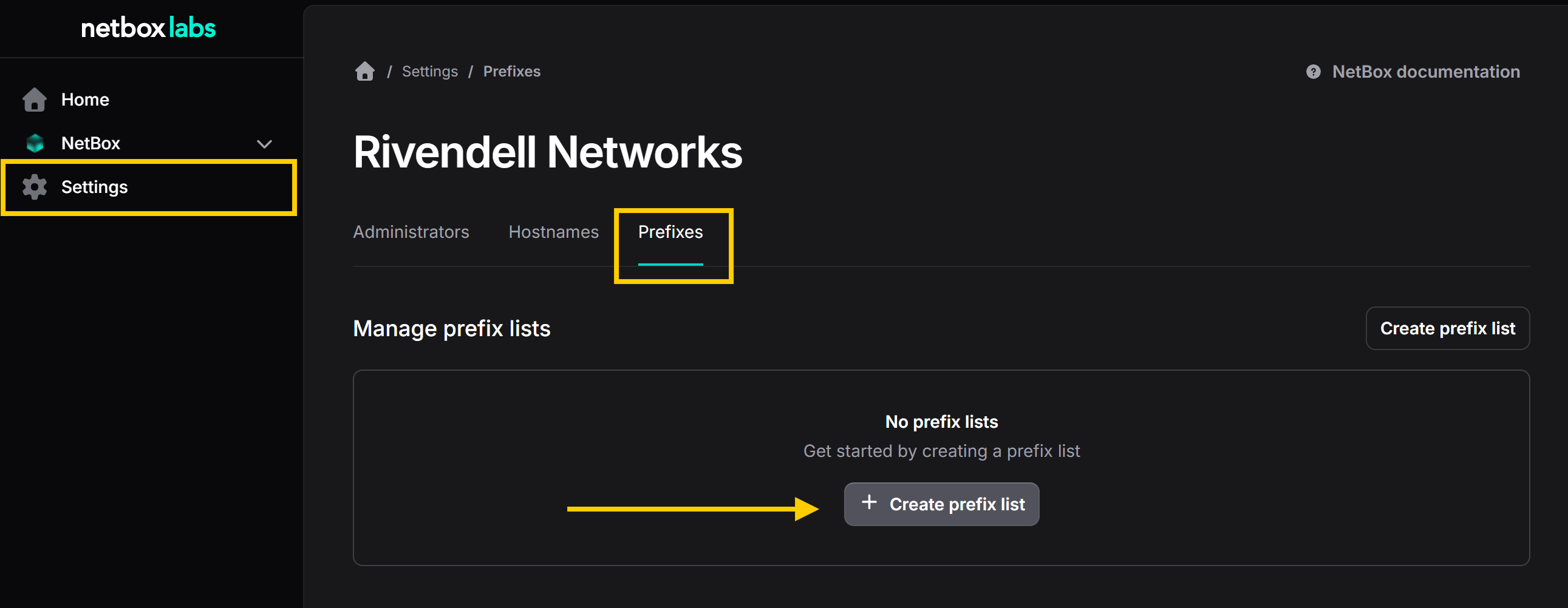
From within the Console, select Settings in the sidebar and then navigate to the Prefixes tab, and then select on Create prefix list to start:
-
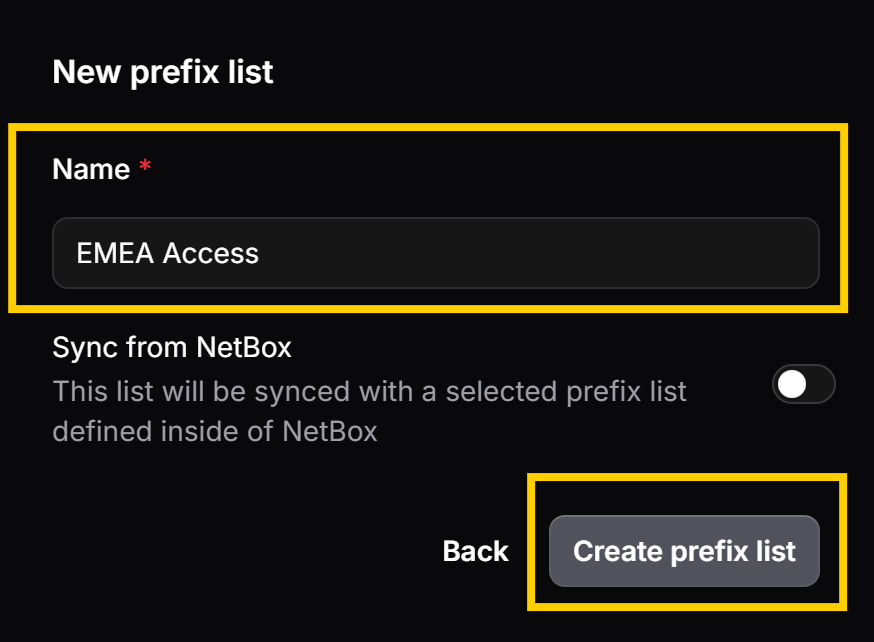
Give the prefix list a name and then click Create Prefix List:
-
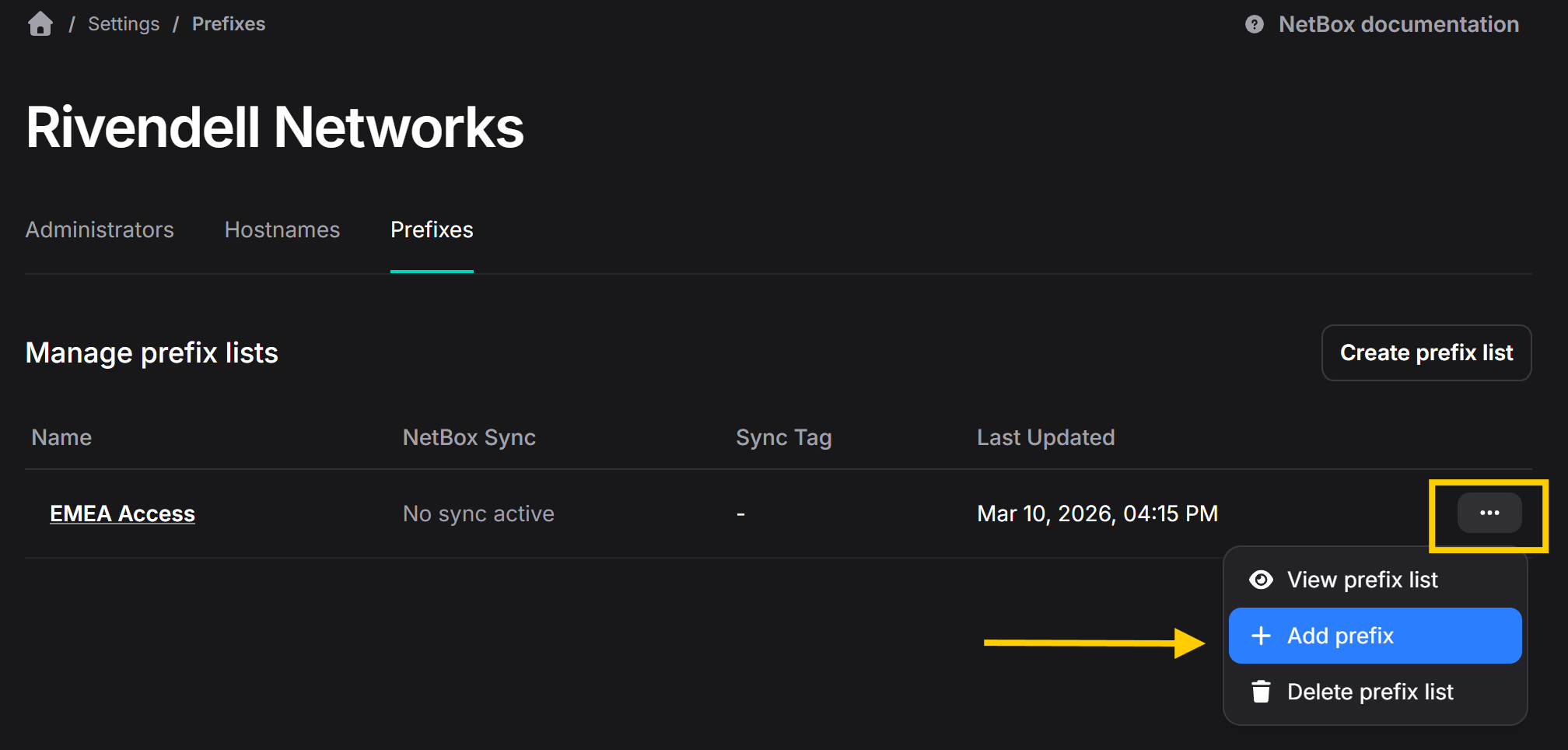
Select the prefix list and choose Add prefix.
-
Configure the IPv4 or IPv6 prefix followed by a mask in CIDR notation, provide a description and select Add prefix.
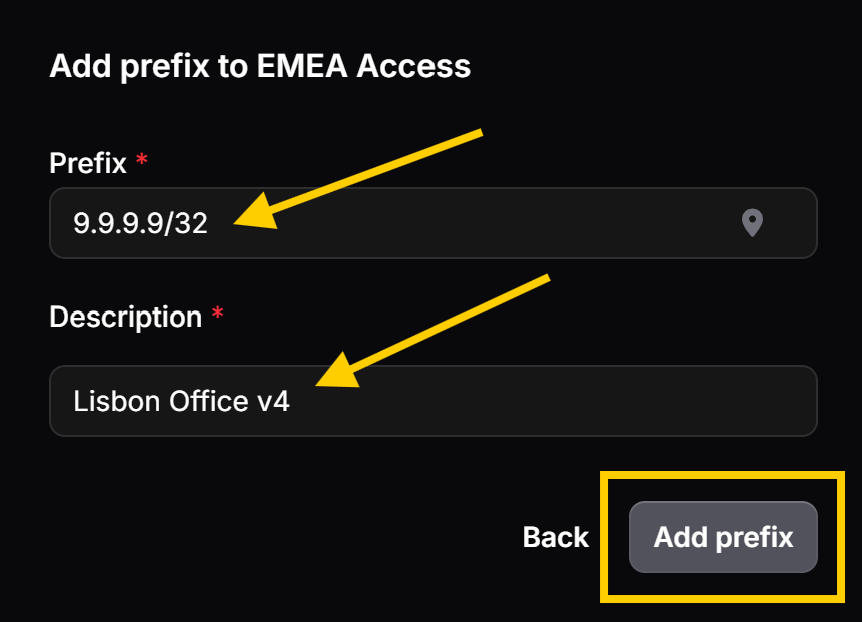
Note - if you wish to add the IP address that you are currently using then click Use Current IP Address by clicking on the map pin icon in the Prefix field.
Create a Prefix List (synchronized with a NetBox)
-
Repeat steps 1 from above to create a new prefix list.
-
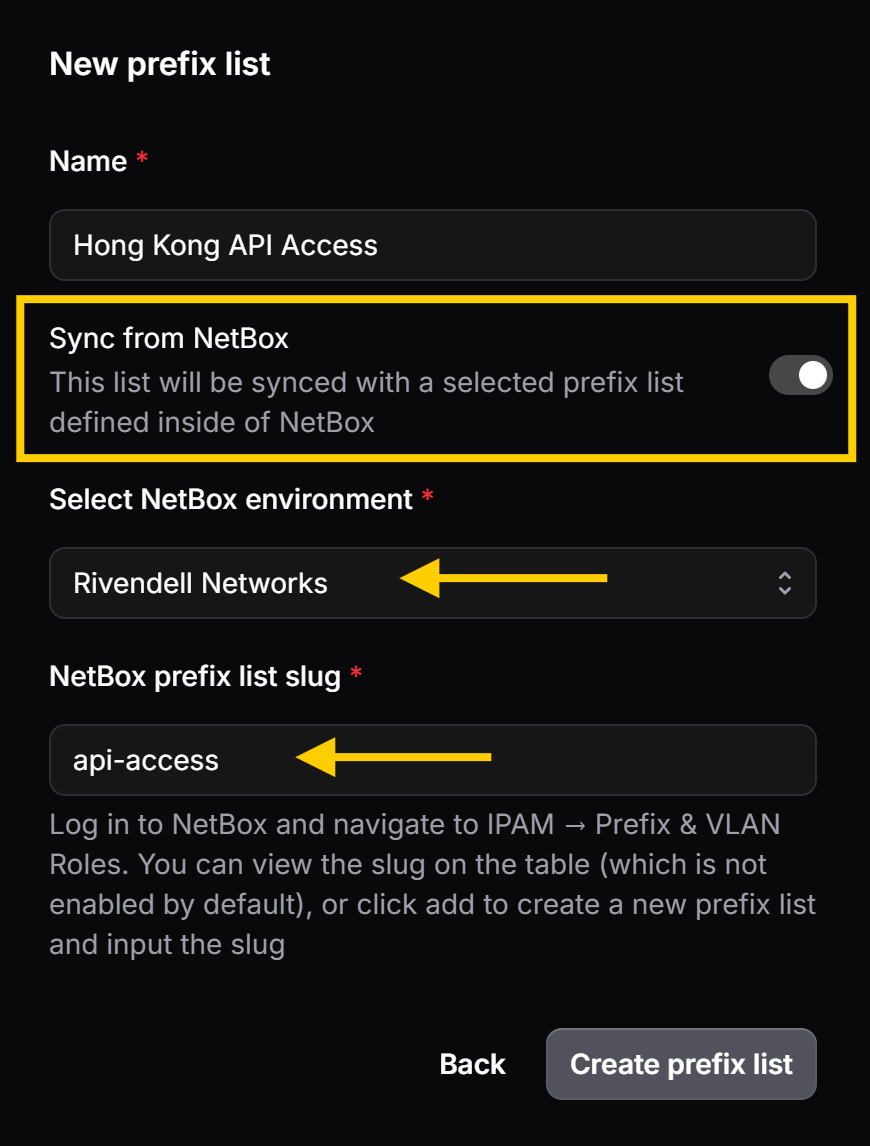
Give the prefix list a name and then enable the toggle to sync the prefix list from a NetBox. Then select the NetBox instance you wish to sync from, specify the NetBox tag that you wish to use, and then click Create prefix list:
-
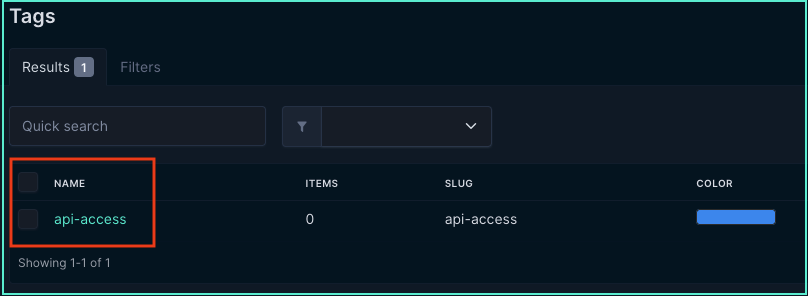
Switch to your NetBox instance, and go to Customization > Tags and create the required tag(s) to be applied to any prefixes that are to be synchronized to the Prefix List:
-
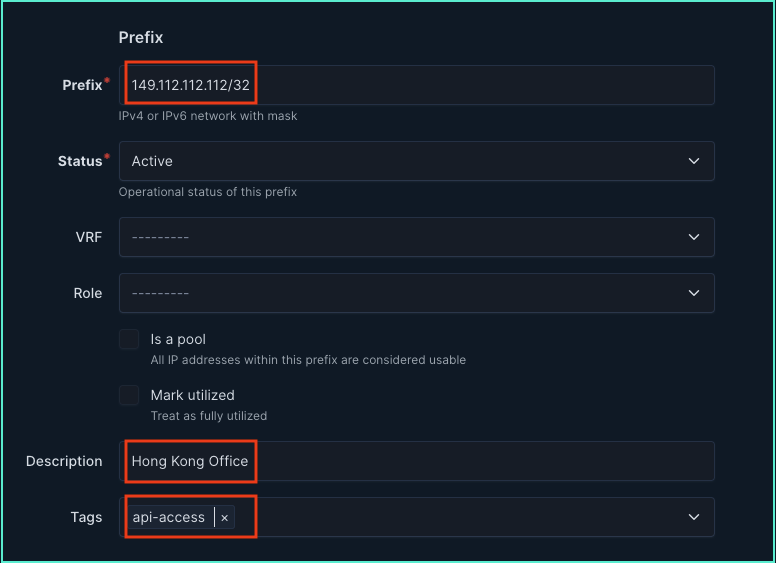
Under IPAM > Prefixes add the prefixes, give them a description and tag them with the appropriate tag:
-
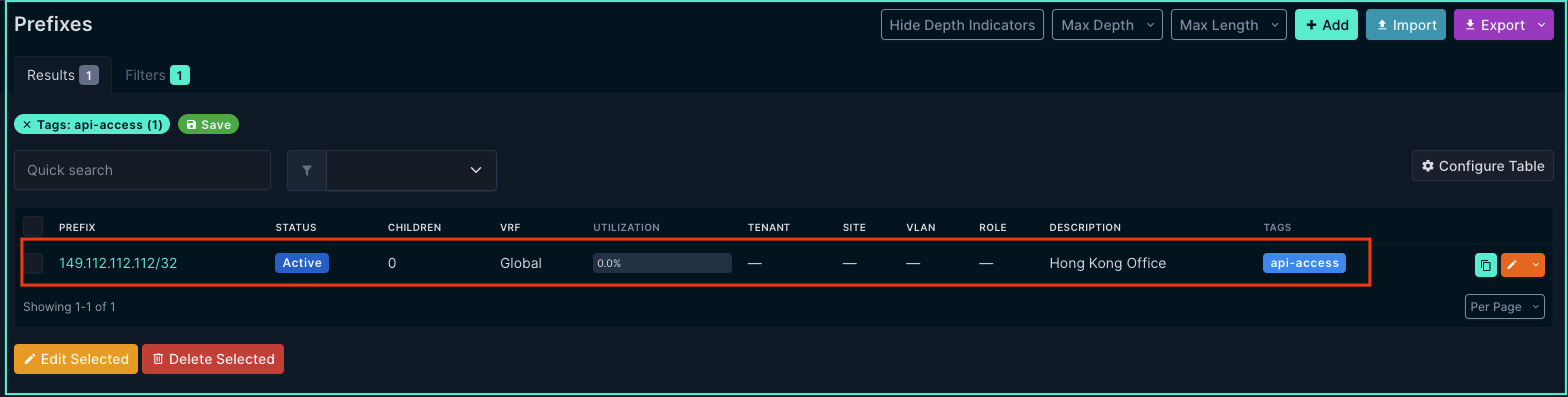
You can then view the prefixes in NetBox under IPAM > Prefixes (Tip - filter on the tag):
-
Return to the Console to view the prefix list from within Settings > Prefixes. Note - it can take a few minutes for the prefix list to be fully synchronized from NetBox.
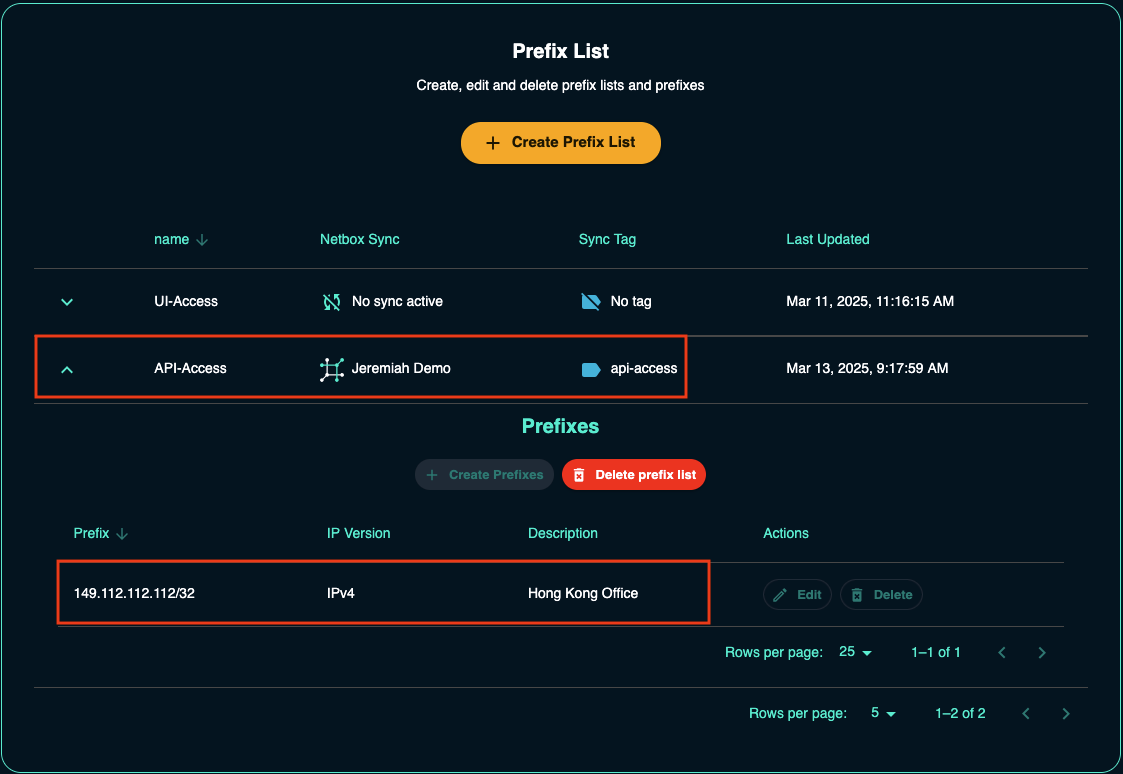
Managing Prefix Lists
Note - this only works for prefix lists that are not synchronized with a NetBox. To edit NetBox synchronized prefix lists you should make the edits within NetBox.
-
From within the Console, navigate to Settings in the left-hand menu and navigate to the Prefixes tab. Here you can select which prefix list to edit:
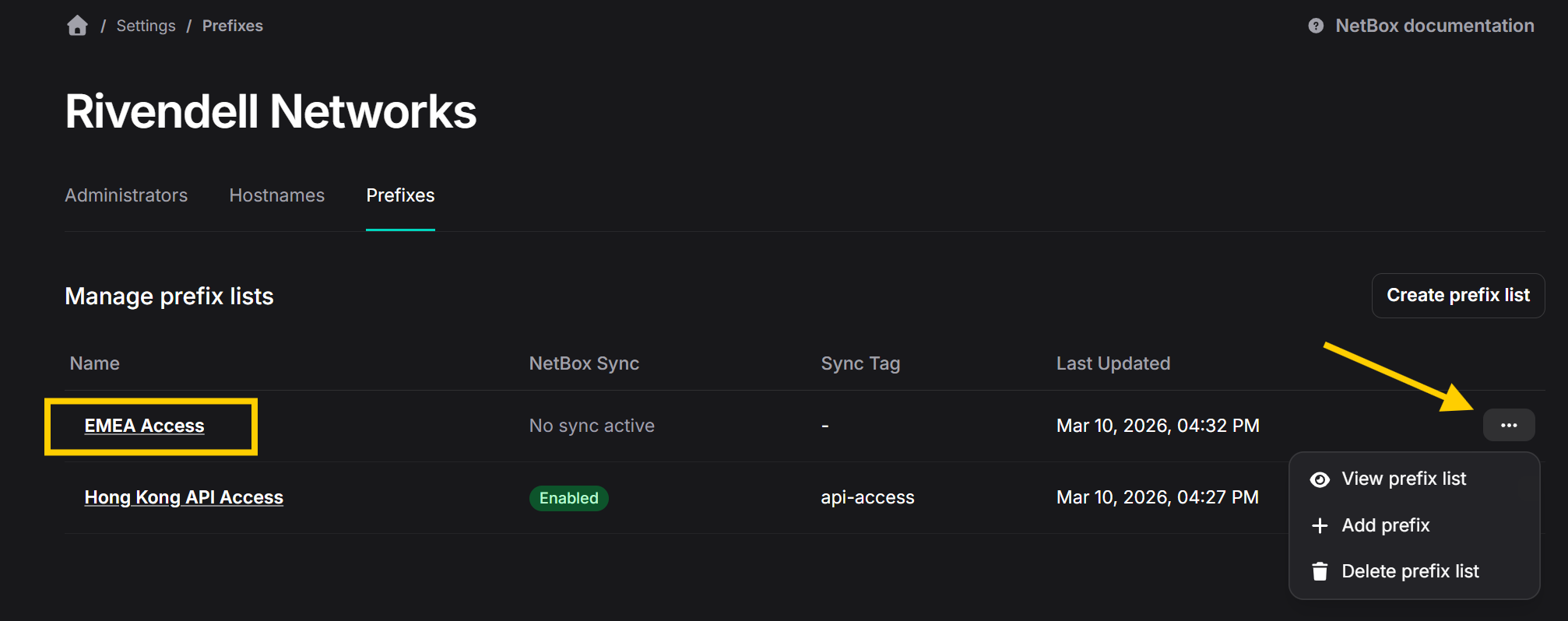
-
To add more prefixes to the list, click on Add Prefix button and then follow the wizard again to add more prefixes.
-
To edit a prefix, select Edit and then make the necessary changes and then click Save to save your changes:
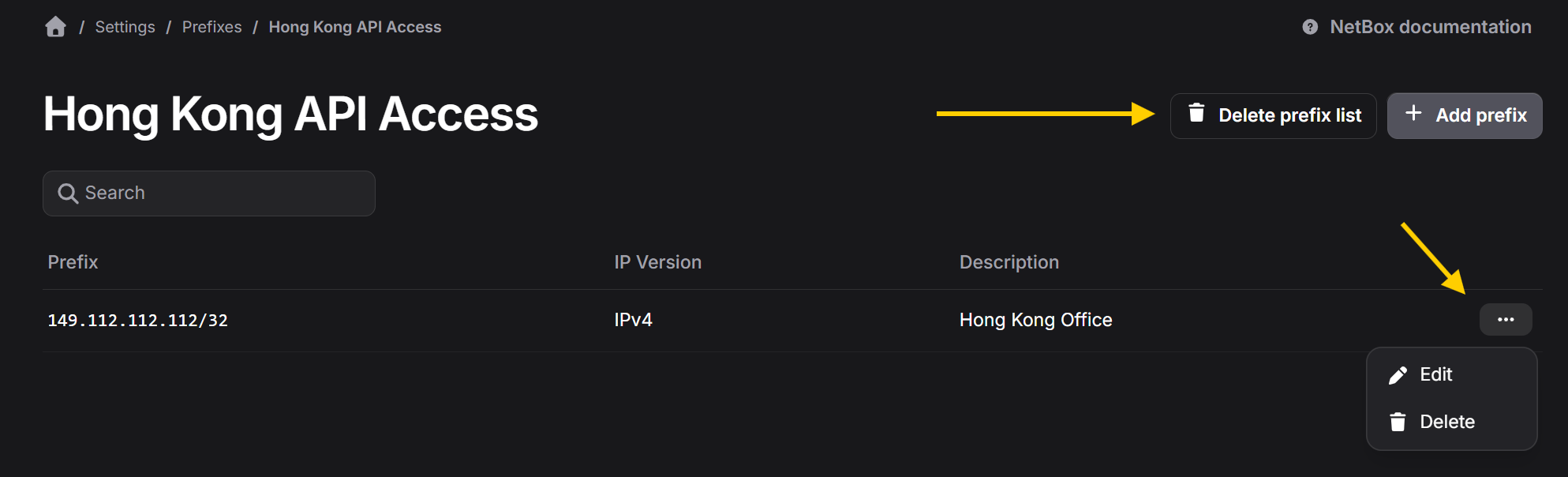
-
To delete a prefix, select the Delete option and then confirm when prompted:
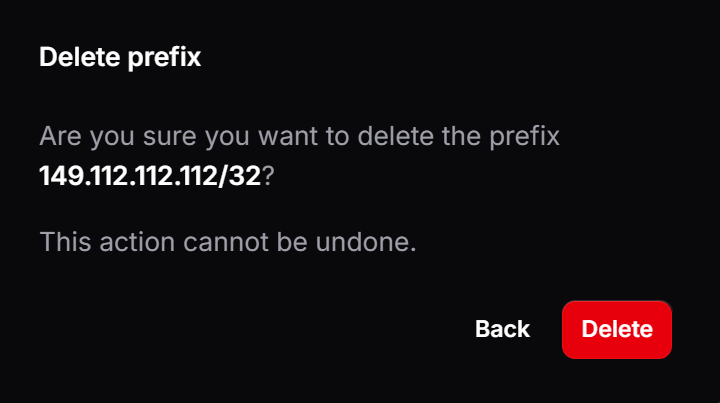
Delete a Prefix List
Note - in order for a prefix list to be deleted it must first be detached from any NetBox instances that it is securing. You will need to contact support and request this before you can delete it.
-
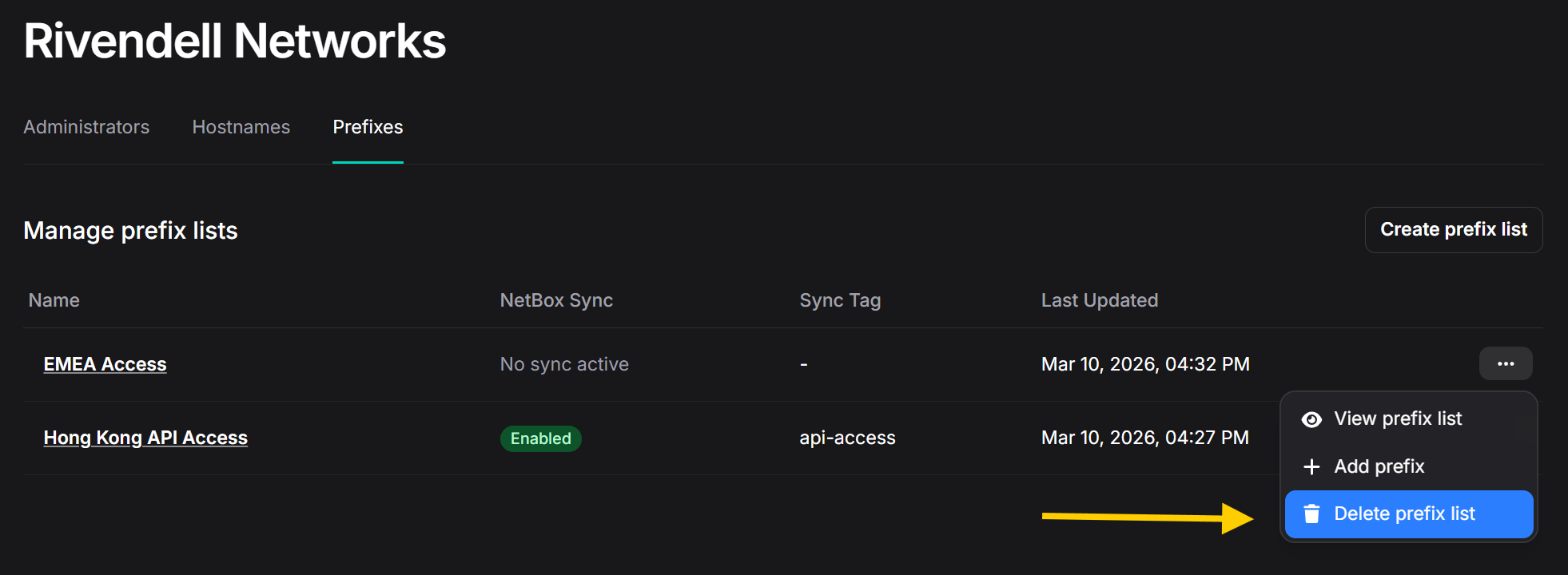
From within the Console, navigate to Settings in the left-hand menu and navigate to the Prefixes tab. Here you can select which prefix list to delete and confirm deletion when prompted.
If you encounter any issues while working with the IP Allow List raise a support ticket by emailing the NetBox Labs Support Team